
Spreadsheet import: Bring your water test spreadsheet with you
Save your spreadsheet as CSV and open it in Turq. Turq reads the values itself, without AI and for free. You check everything, and your past readings sit right next to everything you log from now on.
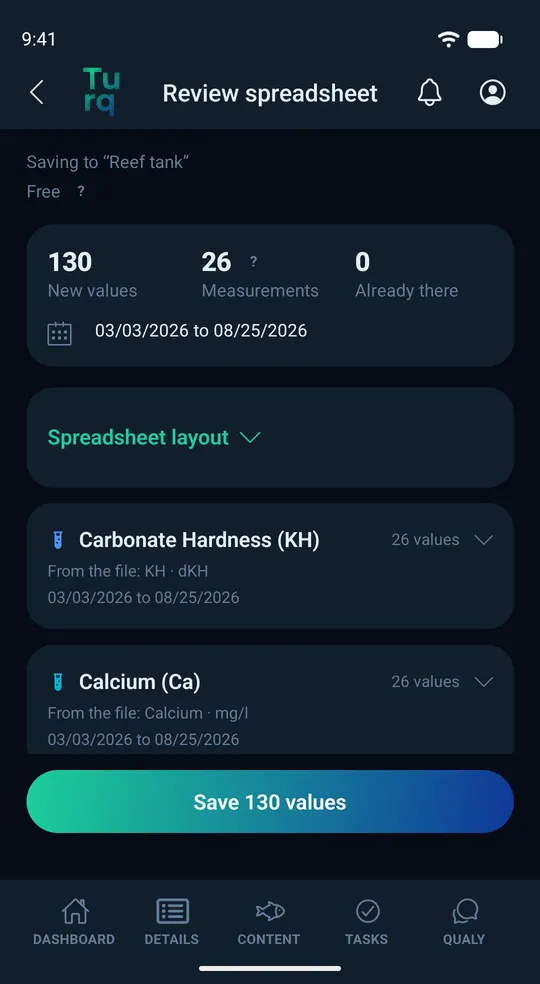
How to import your spreadsheet
First, add the tank the readings belong to in Turq. Then:
- Save your spreadsheet as a CSV file and put it somewhere your phone can open it, like your Downloads folder or your cloud storage.
- In Turq, open your tank and go to Details › Import.
- Tap the “PDF or spreadsheet” tile (yours may say “Spreadsheet (CSV)”) and pick the file.
- Turq opens “Review spreadsheet”. Sort out any open items, like an unclear date format or a missing unit.
- Save the values. They're now in your tank.
Which files work
Turq reads spreadsheets in CSV format:
- Separated by commas, semicolons or tabs, saved as .csv or .txt. Turq figures out the separator on its own, and whether your file uses a decimal point or a comma (8.5 or 8,5).
- One row per value (columns for parameter, value and date) or one column per parameter (one row per measurement).
- Up to 10 rows of titles or notes above the header row are fine.
- CSV exports from another app work too, as long as they use one of these two layouts.
Check before you save
Before anything is saved, “Review spreadsheet” shows how many new values and measurements you'll get and the date range they cover. Also:
- Values from the same day go into one measurement. If you measured something several times a day, each value gets its own measurement at its own time.
- Values that are already in the tank aren't added twice.
- If the date format is unclear, Turq asks and shows you an example.
- If a unit is missing or Turq doesn't know it, you choose it. Converted values are marked.
- Unusually high or low values are flagged so typos stand out. Values outside the measurement limits aren't imported.
- Rows that don't fit are listed with row number and reason, like “Date unreadable”. Everything else is still imported.
- You can save once there are no open items left.
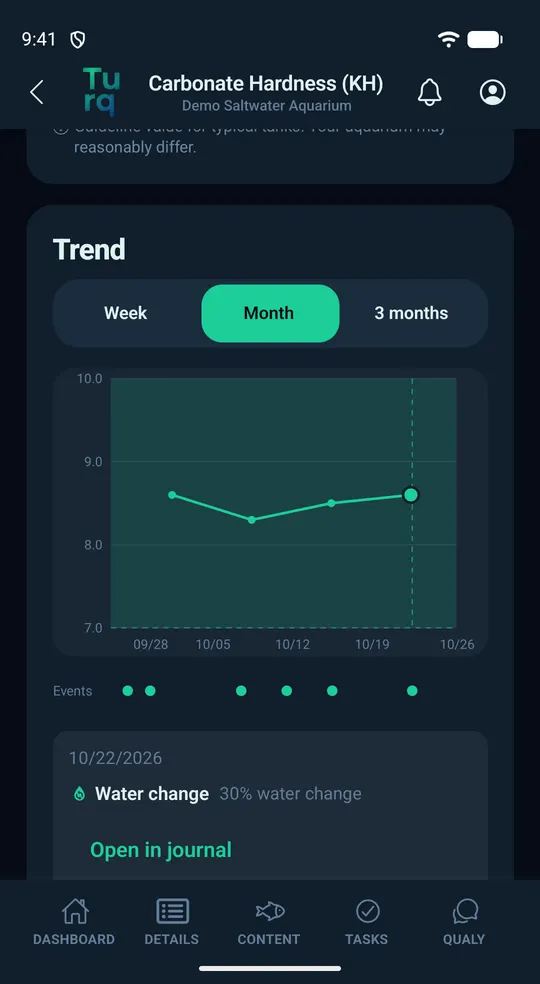
Old and new readings in one history
Turq treats imported values just like the ones you enter yourself. For each parameter, you'll see them in the Trend chart and the Measurements list, next to everything you log from now on. So you're not starting from scratch.
Unfamiliar layout: map it yourself or ask AI
If Turq doesn't know your spreadsheet's layout, you tell it which columns hold the date, parameter and values. Or tap “Get a suggestion”, and Qualy proposes which column holds what. Qualy answers with AI and can be wrong. Anything Qualy suggests is marked, and you check it before saving.
- Suggestions are only available with AI features turned on.
- Qualy gets at most 20 sample rows. Turq replaces long free text with a placeholder first.
- Turq reads the values themselves straight from the file, without AI.
- A suggestion costs no Qualy Credits. The number of suggestions per day is limited.
Free, with clear limits
- Spreadsheet import costs nothing on Free or Pro and doesn't count toward your lab report imports.
- Files can be up to 4 MB with up to 25,000 rows and 64 columns. Split bigger spreadsheets into smaller files, for example by year.
- Only readings are imported.
Other ways to import: lab reports and livestock
Not everything lives in a spreadsheet. Turq has two more imports, one for lab reports and one for your livestock. Both use Qualy and AI, and nothing is saved until you've checked it:
- Lab report: a PDF from the lab, a photo of the report or a screenshot, also under Details › Import. Qualy reads the values, and you check and save them. Each report counts as one lab report import: 1 a month with Free, 5 with Pro.
- Livestock: photos of your animals, or your stock list as a photo, pasted text or a CSV or TXT file, under Content › Residents › “Import residents”. Qualy suggests the species, and only what you confirm gets added. You need a free, secured account for this. Resident import has its own quota: Free gets it once, Pro gets a fresh one every month.
Spreadsheet import FAQ
Can I upload an Excel file directly?
No, Turq only reads CSV. Save the spreadsheet as CSV in Excel and pick that file in Turq.
Does it also bring over tasks, livestock or notes?
No, only readings. Notes and any other columns you don't assign to a parameter are left out. To bring in your livestock, use the separate resident import (see above).
What about readings that are already in Turq?
If the same value with the same date and time is already in the tank, Turq doesn't add it again. “Review spreadsheet” shows you how many are already there. So you can keep your spreadsheet going and upload it again later; only values that aren't in the tank yet are added.
Does AI read my spreadsheet?
No, Turq reads your values without AI. AI only comes in if Turq doesn't know the layout and you ask for a suggestion; then it sees a small sample of the file. If the file isn't a measurement spreadsheet at all, you can have Qualy read it like a lab report, and then AI reads the file. While your AI features are off, nothing goes to AI providers.
Is Turq available for iPhone?
Not yet. Turq is Android only for now. An iPhone version is planned, but there's no date yet.
Try spreadsheet import in the beta
Turq is currently in a closed test on Google Play, for Android and 18+. Spreadsheet import is included, free and without AI. All you need is your phone and your spreadsheet.